This notebook assumes you have completed Part 5 (05-matplotlib.ipynb) and Part 6 (06-lets-plot.ipynb). Parts 5 and 6 taught you how to make a chart at all. This part is about taste: which chart to make, what to leave out of it, and how to brand it once it is ready to show someone other than yourself, using this project’s own ark.plot module.
NoteTopics covered
Topic
Why it matters
Chart selection
The question decides the chart, not the data type
Data-ink ratio
Every pixel that is not data is a tax on the reader’s attention
Common chart lies
The same data, drawn to mislead instead of inform
Tables vs. charts
Exact lookup wants a table; pattern recognition wants a chart
House style
Replacing per-chart styling with one reusable theme
Callout markers used throughout this notebook are explained on the book cover page.
NoteLearning Objectives
By the end of Part 7 you will be able to:
#
Skill
Covered in
1
Choose a chart type based on the question, not habit
Sec. 1
2
Recognise and avoid the most common ways charts mislead
Sec. 2
3
Decide when a table communicates better than a chart
Sec. 3
4
Apply ark.plot’s house theme to matplotlib and lets-plot charts
Sec. 4
5
Identify preattentive attributes and use them deliberately
Sec. 5
6
Add annotations that carry the chart’s narrative
Sec. 6
7
Explain why summary statistics alone are never sufficient (Datasaurus)
Sec. 7
8
Produce one polished, captioned chart from a messy dataset
Capstone
1. Picking the Right Chart, and Cutting What Does Not Help
The most common visualisation mistake is not a styling problem, it is a selection problem: building a chart type out of habit instead of asking what question it needs to answer. A pie chart cannot answer “which course improved the most,” because comparing angles is something people are measurably worse at than comparing positions along a shared axis. That is not opinion, it is the finding of a well-known study by Cleveland and McGill (1984) ranking how accurately people read different visual encodings: position along a common scale first, then length, then angle, then area, with colour saturation last.
import numpy as npimport pandas as pd# Load the shared university dataset used across all Part 1 and Part 2 notebooksdf7 = pd.read_csv("data/university_analytics.csv")# `results` keeps the course/semester/exam_score structure that cells below depend onresults = df7[["course", "semester", "final_score"]].copy()results = results.rename(columns={"final_score": "exam_score"})results.head()
course
semester
exam_score
0
Python Programming
Fall 2023
54.4
1
Statistics
Spring 2024
64.9
2
Data Structures
Fall 2023
64.1
3
Linear Algebra
Spring 2024
59.5
4
Machine Learning
Fall 2023
59.4
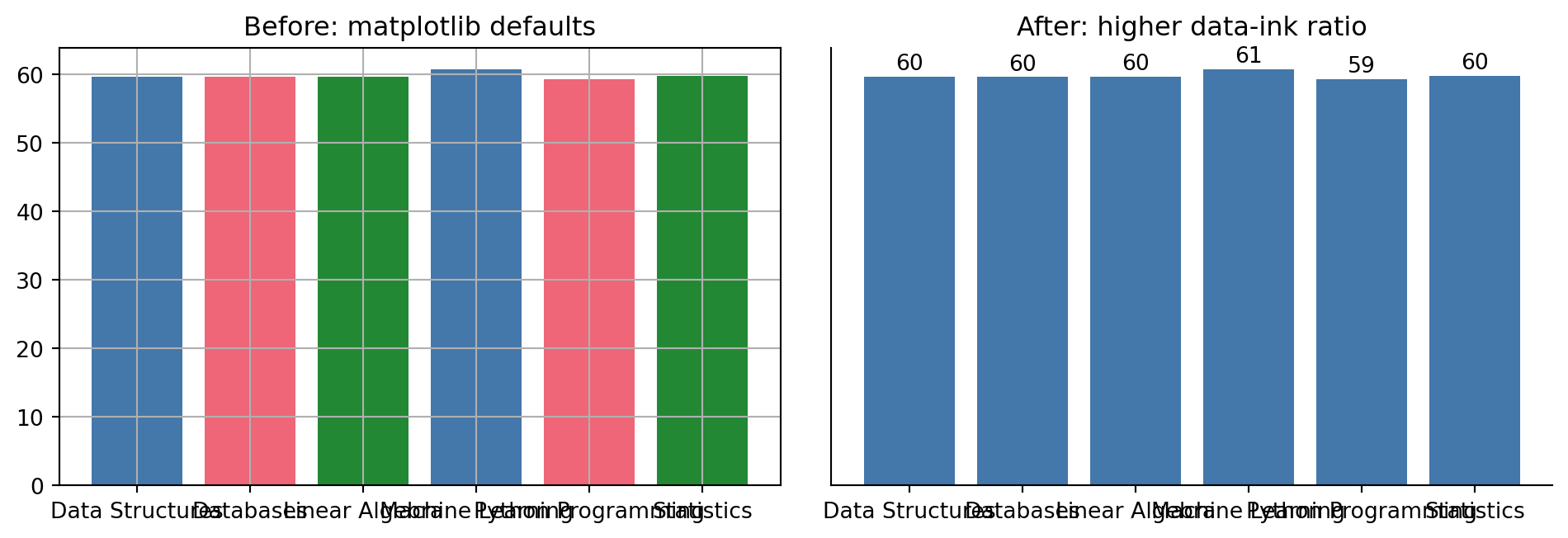
Data-ink ratio, a term from Edward Tufte’s The Visual Display of Quantitative Information, is the proportion of a chart’s ink that represents actual data, as opposed to gridlines, borders, redundant legends, and other decoration. Maximising it does not mean a bare chart, it means every mark earns its place. Compare matplotlib’s defaults to a version with the same data and nothing extra:
import matplotlib.pyplot as pltcourse_means = results.groupby("course")["exam_score"].mean()fig, axes = plt.subplots(1, 2, figsize=(10, 3.5))# Left: matplotlib defaults. Box on all four sides, both gridlines, a# legend the bar colours already make redundant since each bar has its# own label directly underneath it.axes[0].bar(course_means.index, course_means.values, color=["#4477AA", "#EE6677", "#228833"])axes[0].set_title("Before: matplotlib defaults")axes[0].grid(True)# Right: same data, decluttered. No top/right spines, no gridlines, the# value printed directly on each bar instead of relying on the y-axis.axes[1].bar(course_means.index, course_means.values, color="#4477AA")axes[1].spines["top"].set_visible(False)axes[1].spines["right"].set_visible(False)axes[1].set_yticks([])for i, value inenumerate(course_means.values): axes[1].text(i, value +1, f"{value:.0f}", ha="center")axes[1].set_title("After: higher data-ink ratio")fig.tight_layout()
Key Concept: Data-ink ratio
Every gridline, border, and redundant legend entry competes with your data for the reader’s attention. The right-hand chart above removes the y-axis entirely (the labelled bars make it redundant) and the top/right spines, and prints each value once, directly on its bar, instead of forcing the reader to trace a line back to an axis. Decluttering is not about making a chart sparse for its own sake, it is about removing anything that does not carry information.
One message per chart is the last principle worth internalising before the chart-lie gallery in Section 2: a chart that tries to answer three questions at once usually answers none of them clearly. If you find yourself adding a third colour dimension, a secondary y-axis, and a trend line to the same chart, that is a sign you need two charts, not one crowded one.
2. Common Chart Lies
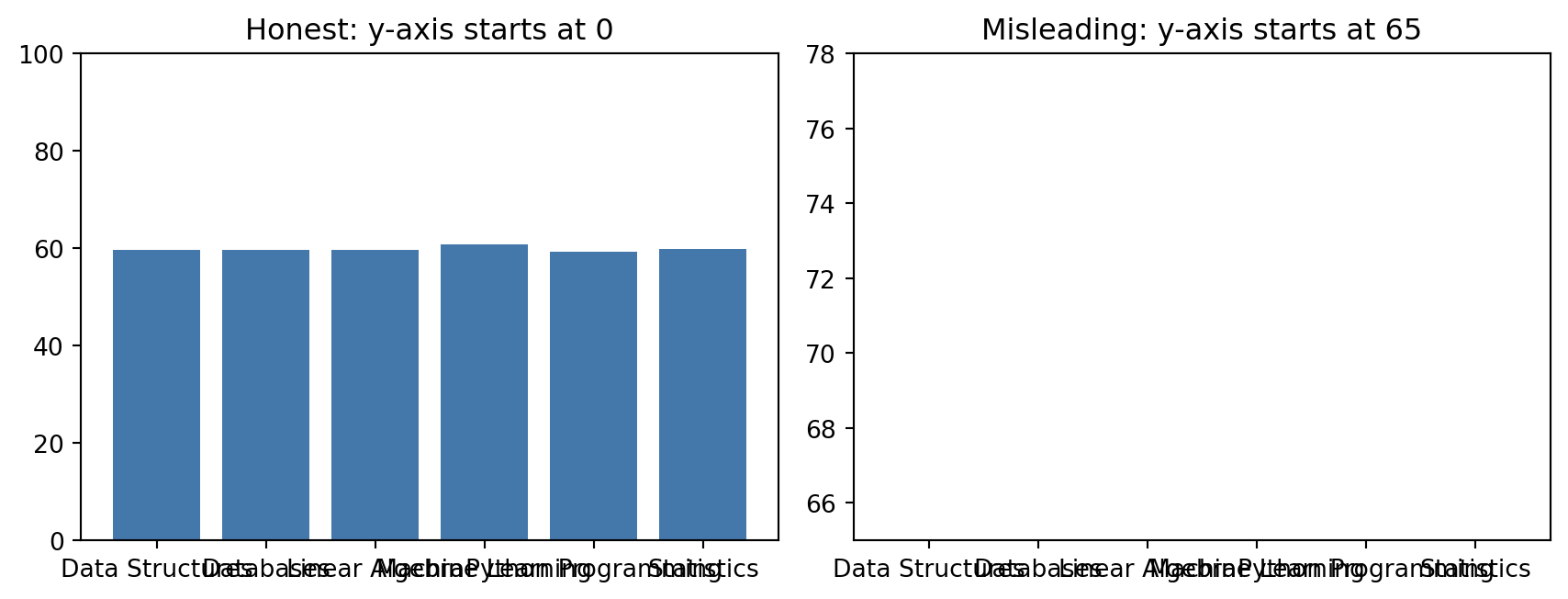
None of the charts below contain incorrect numbers. Each one is drawn in a way that makes the reader’s brain compute the wrong conclusion from correct data. Recognising these on sight, in your own draft charts, is the actual skill.
The two charts above show the exact same three numbers. The right-hand one starts its y-axis at 65 instead of 0, which makes a 6-point difference between courses look like one course scores three times higher than another. Bar charts in particular must start at zero, because the reader judges bar height (and therefore a ratio) automatically. Line charts can sometimes justify a non-zero baseline if it is labelled clearly, bars almost never can.
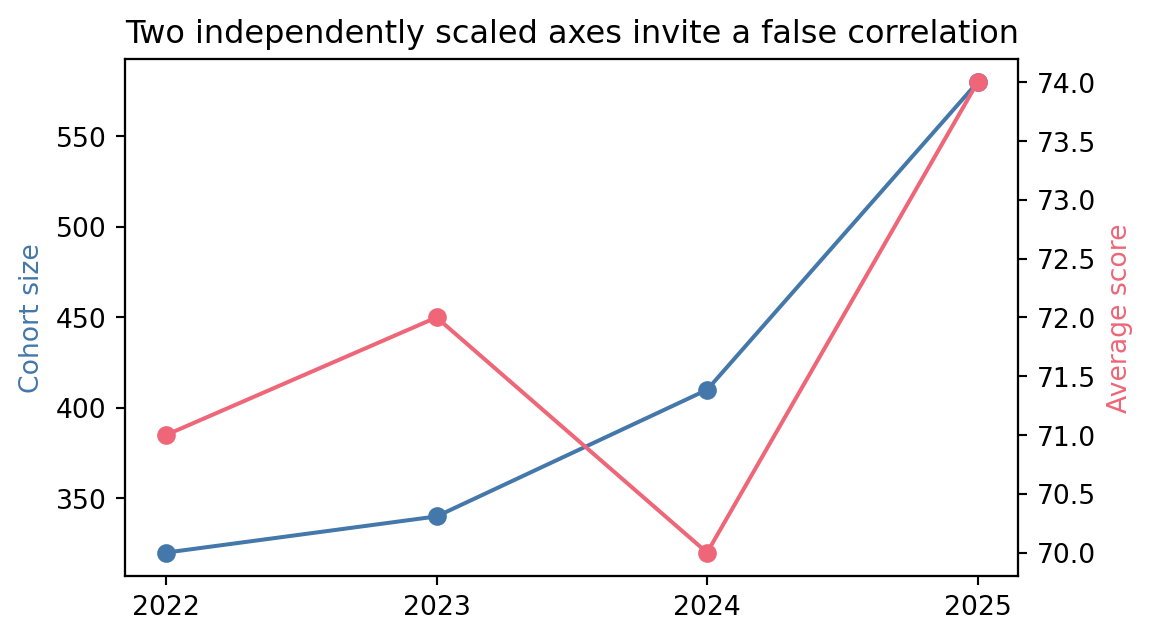
Cohort size and average score both happen to rise together in this chart, but each axis was scaled independently to make the two lines fit nicely, which is exactly what makes dual axes dangerous: you can almost always pick scales that make two unrelated series appear to move together. If two series genuinely need comparing, plot their percent change from a common baseline on one shared axis instead, or use two separate charts stacked vertically with the same x-axis.
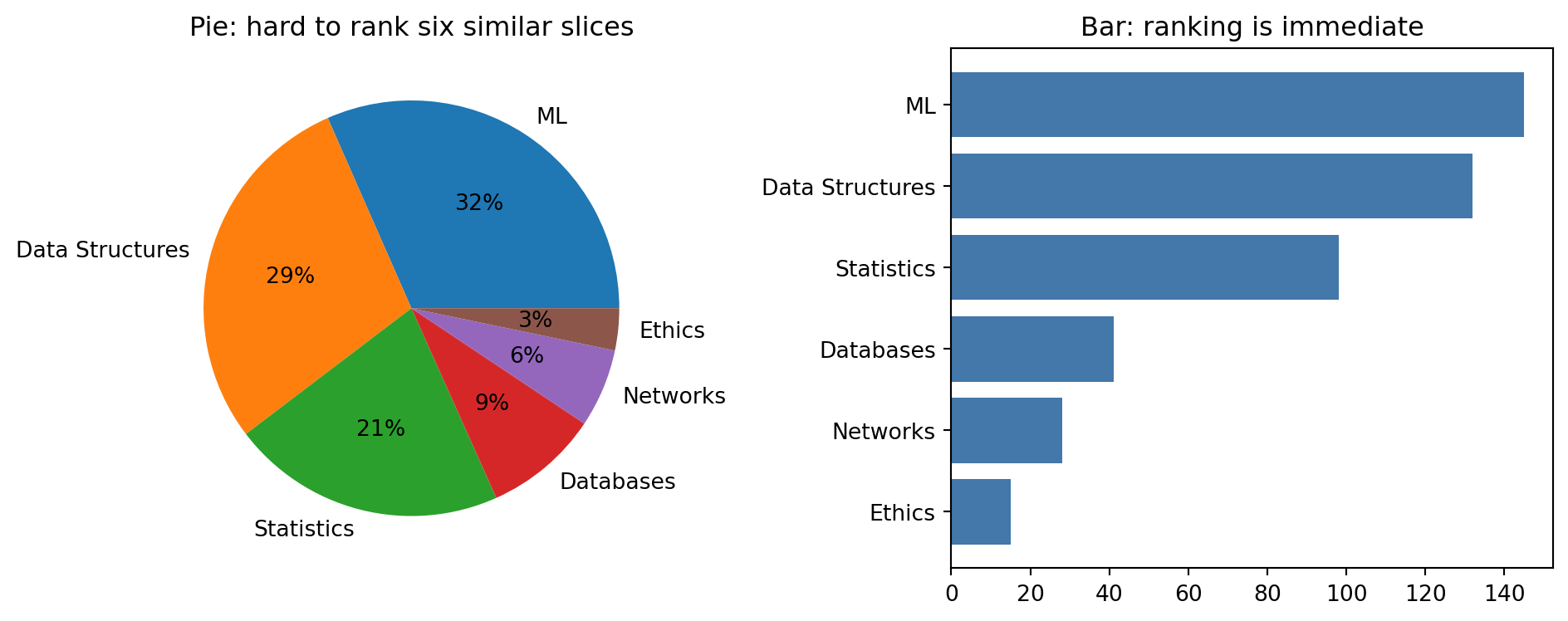
enrollment = pd.Series( {"ML": 145, "Data Structures": 132, "Statistics": 98, "Databases": 41, "Networks": 28, "Ethics": 15})fig, axes = plt.subplots(1, 2, figsize=(10, 4))axes[0].pie(enrollment.values, labels=enrollment.index, autopct="%1.0f%%")axes[0].set_title("Pie: hard to rank six similar slices")axes[1].barh(enrollment.index[::-1], enrollment.values[::-1], color="#4477AA")axes[1].set_title("Bar: ranking is immediate")fig.tight_layout()
Common Mistake: Too many pie slices
Six categories is already past where a pie chart works: Ethics and Networks are visibly different bars, but as pie slices they are nearly impossible to rank by eye, exactly the angle-judgment weakness Cleveland and McGill measured. A horizontal bar chart, sorted by value, answers “which course has the most enrollment” instantly. Reserve pie charts for two or three categories where one slice is clearly dominant, and prefer a bar chart almost everywhere else.
3. When a Table Beats a Chart
A chart is for spotting a pattern at a glance. A table is for looking up an exact number, or comparing many numbers a reader needs to cite precisely, such as a results appendix someone will quote in a report. This project’s ark.plot.gt_style module wraps great_tables with the same brand colours used everywhere else, so a results table looks like it belongs in the same document as the chart next to it:
from great_tables import GT, md as gt_mdfrom ark.plot.gt_style import themed_gtsummary = results.groupby("course")["exam_score"].agg(mean="mean", std="std", n="count").round(1).reset_index()table = themed_gt( GT(summary) .tab_header(title=gt_md("**Exam Score Summary**"), subtitle="Mean, spread, and sample size per course") .cols_label(course="Course", mean="Mean", std="Std. Dev.", n="N"), n_rows=len(summary),)table
Exam Score Summary
Mean, spread, and sample size per course
Course
Mean
Std. Dev.
N
Data Structures
59.7
14.6
400
Databases
59.6
15.6
400
Linear Algebra
59.7
15.3
400
Machine Learning
60.8
15.2
400
Python Programming
59.4
15.4
400
Statistics
59.8
14.4
400
Pro Tip: Pair a chart with a table, do not choose between them
A results section in a report often wants both: the histogram from Part 5 to show the shape of the distribution, and a table like the one above to give the exact numbers someone will want to quote. Neither replaces the other.
4. From Default to Branded
Parts 5 and 6 used each library’s own defaults on purpose, so the charts in those notebooks teach the mechanics without a styling layer in the way. This project’s ark.plot module exists precisely so you do not have to restate the same colours, fonts, and spacing on every single chart by hand. Compare a lets-plot chart with and without it:
from lets_plot import labs, scale_fill_manualfrom ark.plot.theme import modern_theme, pro_colorsbranded_chart = ( ggplot(results, aes(x="exam_score", fill="course"))+ geom_histogram(bins=20, alpha=0.85)+ scale_fill_manual(values=pro_colors)+ labs( title="Exam score distribution by course", x="Exam score (0-100)", y="Number of students", fill="Course", )+ modern_theme(grid=True))branded_chart + ggsize(450, 300)
modern_theme() is one more + layer, exactly like every geom_*() in Part 6. scale_fill_manual(values=pro_colors) pins each course to the brand palette, and labs() replaces the auto-generated column names with reader-facing text. gggrid() puts both charts side by side in one output, which is the cleanest way to show a before/after comparison in a single cell:
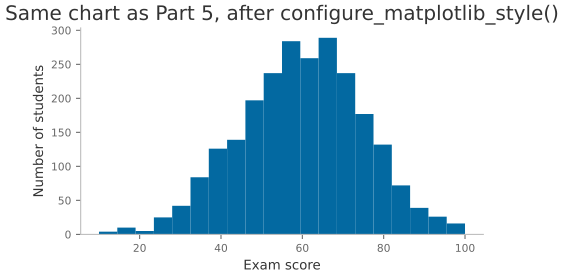
The matplotlib equivalent, ark.plot.matplot_theme.configure_matplotlib_style(), works differently: it updates matplotlib’s global rcParams, so it applies to every chart drawn after you call it, not just one. That is the right trade-off for a notebook or script that draws many charts you want to look consistent, at the cost of not being able to mix styled and unstyled charts in the same figure:
from ark.plot.matplot_theme import configure_matplotlib_styleconfigure_matplotlib_style(font_size=10, fig_width=5)fig, ax = plt.subplots()ax.hist(results["exam_score"], bins=20)ax.set_xlabel("Exam score")ax.set_ylabel("Number of students")ax.set_title("Same chart as Part 5, after configure_matplotlib_style()");
Activity 1 - Brand a Boxplot
Goal: Rebuild Part 5’s seaborn boxplot of exam_score by course, but after calling configure_matplotlib_style() from this section. No other code changes: the same sns.boxplot() call should now pick up the brand colour cycle automatically.
import seaborn as sns# TODO: boxplot of exam_score by course, styled by the already-active house theme...
Ellipsis
Pro Tip: A house theme is a contract, not a one-off setting
The value of ark.plot is not any single colour choice, it is that every chart in this project, in any notebook, in any report, reaches for the same module instead of redefining its own palette. When the brand colours change, they change in one file.
5. Preattentive Attributes: What the Brain Sees First
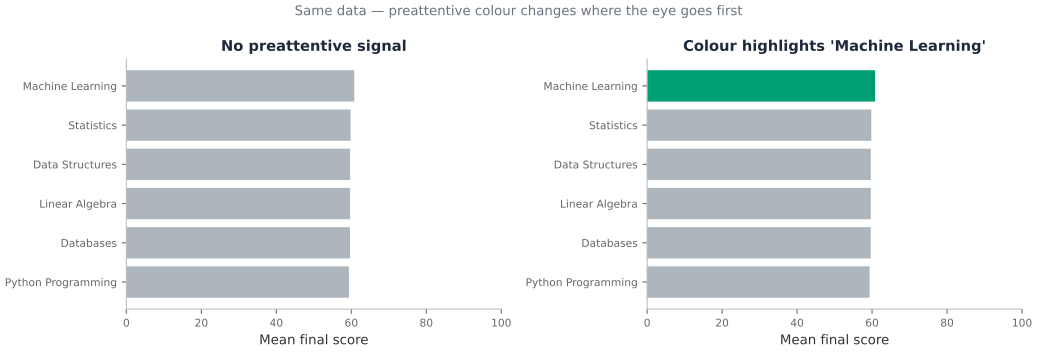
Before you consciously read a chart, your visual system has already processed certain features. These are called preattentive attributes: colour hue, luminance, shape, orientation, size, position, and enclosure. They register in under 250 milliseconds, before attention is directed.
The design implication is simple but easy to violate: use at most one preattentive attribute for emphasis per chart. Two or more compete for attention and cancel each other out.
Key Concept: Preattentive Attributes
Visual properties processed before conscious attention — colour hue, luminance, shape, orientation, size, position, and motion. The practical rule: encode at most one categorical dimension preattentively, and make sure it carries information, not decoration.
Reference: Ware, C. (2012). Information Visualization: Perception for Design, 3rd ed.
import matplotlib.pyplot as pltimport numpy as npimport pandas as pddf7 = pd.read_csv("data/university_analytics.csv")course_means = df7.groupby("course")["final_score"].mean().sort_values()# Left: every bar the same colour — no preattentive signal# Right: one bar highlighted with colour — attention goes there instantlyTARGET ="Machine Learning"fig, axes = plt.subplots(1, 2, figsize=(11, 3.8))for ax, use_highlight inzip(axes, [False, True], strict=False): colors = ( ["#009E73"if c == TARGET else"#ADB5BD"for c in course_means.index]if use_highlightelse ["#ADB5BD"] *len(course_means) ) ax.barh(course_means.index, course_means.values, color=colors) ax.set_xlabel("Mean final score") ax.spines[["top", "right"]].set_visible(False) ax.set_xlim(0, 100) title ="No preattentive signal"ifnot use_highlight elsef"Colour highlights {TARGET!r}" ax.set_title(title, fontsize=11, fontweight="bold", color="#1E293B")fig.suptitle("Same data — preattentive colour changes where the eye goes first", fontsize=10, color="#6B7280")fig.tight_layout()plt.show()
Activity 5 - Highlight by Region
Goal: Build a horizontal bar chart of mean midterm_score by region. Highlight the region with the highest mean in #0369A1 and colour every other bar #ADB5BD. Add a concise title stating which region leads.
region_means = df7.groupby("region")["midterm_score"].mean().sort_values()
# ... build the chart with one highlighted bar ...
# TODO: highlight the top-scoring region in the midterm score chart...
6. Annotation as Narrative
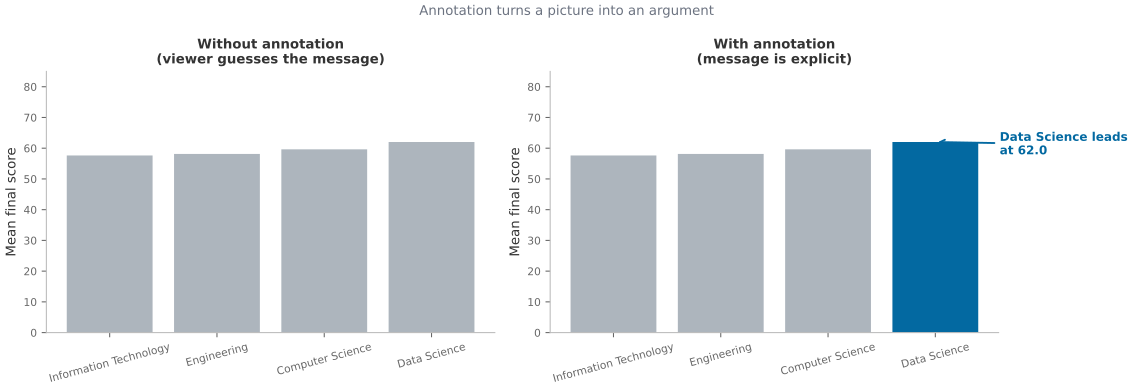
A chart without annotation forces viewers to form their own interpretation. Annotation is where the “so what?” lives — the one sentence that turns a picture into an argument.
Effective annotation does three things: 1. Points at the specific data feature that supports the message (arrow or callout). 2. States that feature in plain language, not chart jargon. 3. Uses restraint: one annotation per message, not one per data point.
Key Concept: Annotation as the “So What?”
Knaflic’s rule (2015): “the most important single thing you can do to improve your graph is to add a descriptive title.” Add arrows and labels that direct attention to the exact point you want the viewer to remember. A good annotation answers: what should I notice here, and why does it matter?
fig, axes = plt.subplots(1, 2, figsize=(12, 4.2))# ── Left: unannotated — what's the takeaway? ──────────────────────────────────program_means = df7.groupby("program")["final_score"].mean().sort_values()for ax in axes: bars = ax.bar(program_means.index, program_means.values, color=["#ADB5BD"] *len(program_means)) ax.set_ylabel("Mean final score") ax.spines[["top", "right"]].set_visible(False) ax.set_ylim(0, 85) ax.tick_params(axis="x", rotation=15)axes[0].set_title("Without annotation\n(viewer guesses the message)", fontsize=10, fontweight="bold")# ── Right: annotated — narrative is explicit ──────────────────────────────────best_idx =list(program_means.index).index(program_means.idxmax())axes[1].patches[best_idx].set_facecolor("#0369A1")axes[1].annotate(f"Data Science leads\nat {program_means.max():.1f}", xy=(best_idx, program_means.max()), xytext=(best_idx +0.6, program_means.max() -4), fontsize=9, color="#0369A1", fontweight="bold", arrowprops={"arrowstyle": "->", "color": "#0369A1", "lw": 1.4}, ha="left",)axes[1].set_title("With annotation\n(message is explicit)", fontsize=10, fontweight="bold")fig.suptitle("Annotation turns a picture into an argument", fontsize=10, color="#6B7280")fig.tight_layout()plt.show()
Activity 6 - Annotate a Trend
Goal: Plot mean final_score by semester as a line chart. Add ax.annotate() to flag the semester with the highest mean and write a one-sentence insight as the chart title.
sem_means = df7.groupby("semester")["final_score"].mean()
# ... line chart + annotation ...
# TODO: line chart of final_score by semester with an annotation on the peak semester...
7. The Datasaurus Dozen: Always Visualize
In 1973 Francis Anscombe constructed four datasets with nearly identical summary statistics — same mean, variance, and correlation — but radically different visual shapes. In 2017, Matejka and Fitzmaurice extended this to thirteen datasets, including a dinosaur, which gave the collection its name: the Datasaurus Dozen.
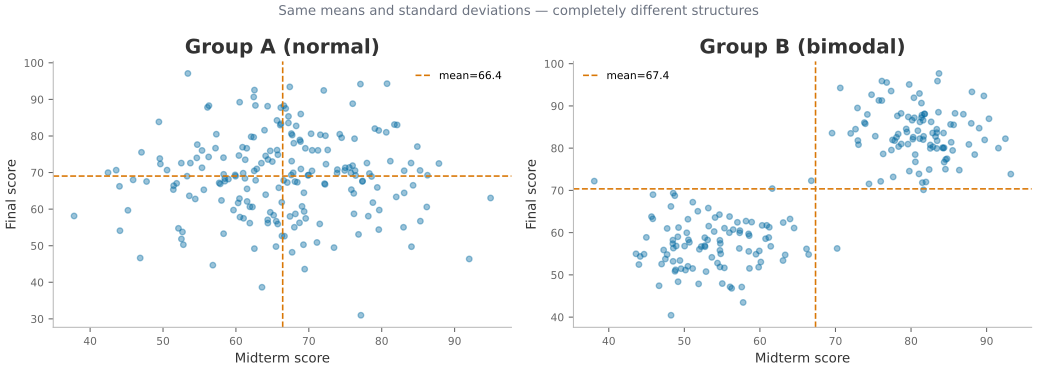
The lesson is not subtle: summary statistics alone hide the shape of your data. A mean and a standard deviation cannot distinguish a normal distribution from a bimodal one, a dinosaur, or a circle.
Key Concept: Datasaurus Dozen
Matejka, J. & Fitzmaurice, G. (2017). Same stats, different graphs. Proceedings of CHI 2017. The original Anscombe’s Quartet dates from 1973. Both show the same principle: visualize before summarizing. A modern corollary for ML: never report only RMSE without looking at a residual plot.
# Demonstrate "same stats, different shapes" with two student subsets# that have matching means and standard deviations but different distributions.rng = np.random.default_rng(7)# Group A: normally distributed scores (typical class)n =200group_a = pd.DataFrame( {"group": "Group A (normal)","midterm": rng.normal(68, 12, n).clip(20, 100),"final": rng.normal(70, 12, n).clip(20, 100), })# Group B: bimodal — two subpopulations merged (e.g. two campuses with different resources)group_b = pd.DataFrame( {"group": "Group B (bimodal)","midterm": np.concatenate([rng.normal(55, 6, n //2), rng.normal(82, 6, n //2)]),"final": np.concatenate([rng.normal(57, 6, n //2), rng.normal(84, 6, n //2)]), })combined = pd.concat([group_a, group_b], ignore_index=True)# Summary stats — almost identicalprint("Summary statistics:")print(combined.groupby("group")[["midterm", "final"]].describe().round(1).to_string())print()fig, axes = plt.subplots(1, 2, figsize=(11, 4), sharey=False)for ax, (name, grp) inzip(axes, combined.groupby("group"), strict=False): ax.scatter(grp["midterm"], grp["final"], alpha=0.4, s=18, color="#0369A1") ax.set_xlabel("Midterm score") ax.set_ylabel("Final score") ax.set_title(name, fontweight="bold") ax.spines[["top", "right"]].set_visible(False)# Annotate means ax.axvline(grp["midterm"].mean(), color="#D97706", lw=1.2, ls="--", label=f"mean={grp['midterm'].mean():.1f}") ax.axhline(grp["final"].mean(), color="#D97706", lw=1.2, ls="--") ax.legend(fontsize=8)fig.suptitle("Same means and standard deviations — completely different structures", fontsize=10, color="#6B7280")fig.tight_layout()plt.show()
Summary statistics:
                  midterm                                            final
                    count  mean   std   min   25%   50%   75%   max  count  mean   std   min   25%   50%   75%   max
group
Group A (normal)    200.0  66.4  10.5  37.8  60.2  66.4  73.9  94.9  200.0  69.0  11.7  31.0  60.7  69.3  76.3  97.1
Group B (bimodal)   200.0  67.4  14.8  38.1  53.2  68.2  81.4  93.2  200.0  70.4  14.5  40.4  56.8  71.0  83.0  97.7
Common Mistake: Reporting only mean ± std for a bimodal distribution
Group B above has the same mean and standard deviation as Group A. A table of statistics alone would show no difference. The scatter plot reveals that Group B is actually two separate subpopulations — a finding with direct intervention implications.
Rule: for any continuous variable you care about, always plot a distribution (histogram, KDE, strip plot, or box plot) before reporting a single number.
Activity 7 - Unmask the Hidden Structure
Goal: From university_analytics.csv, compare the distribution of final_score for two programs side-by-side using overlapping KDE plots (or box plots). Before plotting, print the mean and standard deviation for each program. Then reflect: would the statistics alone have revealed the difference?
import seaborn as sns
# ... print stats, then plot KDE for each program ...
# TODO: compare final_score distributions for two programs: print stats, then KDE plot...
Capstone: Rescue a Misleading Chart
Below is a chart with three problems from this notebook stacked together: a truncated y-axis, no axis labels, and matplotlib’s unbranded defaults. Fix all three, then add one caption sentence stating the chart’s single message.
# The chart to rescue. Run this first to see what is wrong with it.fig, ax = plt.subplots(figsize=(5, 3))ax.bar(course_means.index, course_means.values, color=["#4477AA", "#EE6677", "#228833"])ax.set_ylim(65, 78)fig.tight_layout()
Capstone Exercise - Fix the Chart
Goal:
Fix the y-axis to start at 0
Add an x and y axis label
Apply the house style with configure_matplotlib_style()
Add one print statement with a one-sentence caption stating the chart’s single message
Hint:configure_matplotlib_style() only affects charts drawn after it runs, so call it before plt.subplots(), not after.
# TODO: rescue the chart...print("Caption: ...")
Caption: ...
Further Reading
Resource
Why it matters
Knaflic, C.N. (2015). Storytelling with Data. Wiley.
The most practical data visualisation book for analysts; the annotated chart examples in Chapter 5 are worth the price alone
Wilke, C.O. (2019). Fundamentals of Data Visualization. O’Reilly.
Free at clauswilke.com/dataviz — Chapter 17 on “proportional ink” and Chapter 18 on chart junk directly support Sections 1–2 of this notebook
Schwabish, J. (2021). Better Data Visualizations. Columbia University Press.
Covers annotation, layout, and the “sorta spaghetti” problem; strong on the gap between what analysts produce and what executives read
Cleveland, W.S. & McGill, R. (1984). Graphical perception. Journal of the American Statistical Association 79(387), 531–554.
The empirical study that established the encoding hierarchy used in Section 1